Kaunter in 12 steps
From install to your first bill takes about 15 minutes. Stuck anywhere? WhatsApp ACS on 81700 18080.
1Install on the shop phone
Android: open the install link (from the form or from ACS) in Google Chrome. Tap ⋮ → Install app (or “Add to Home screen”). Kaunter now opens like any other app — even with no internet.
iPhone: open the link in Safari → Share → Add to Home Screen. (Bluetooth printing needs Android.)
Tip: in phone settings keep Date & time → Automatic on.
2Start your free trial
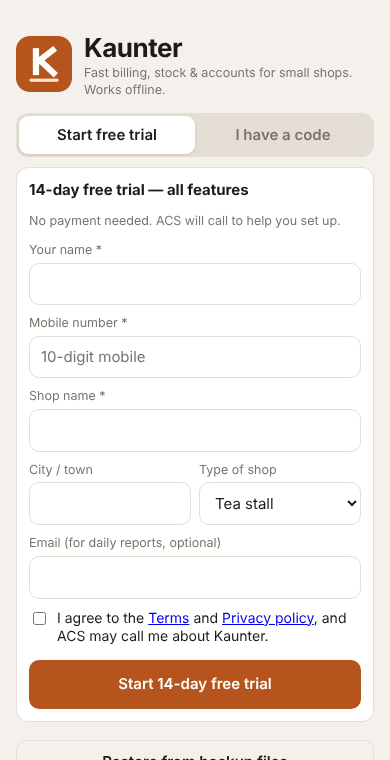
Choose Start free trial, fill your name, mobile and shop, tick the box and tap the button. You get every feature free for 14 days.
Setting up a second phone, a new phone for the same shop, or a store ACS created for you? Choose I have a code and enter the 8-letter activation code. Your data comes back from the cloud.
3Set up the shop & owner PIN
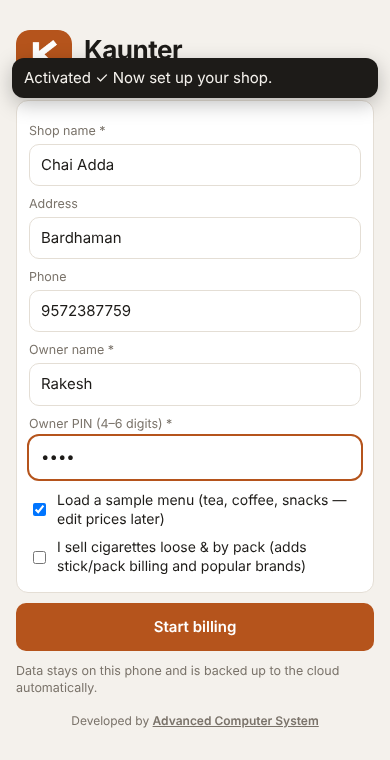
Enter the shop name, your name and a 4–6 digit owner PIN. Keep the sample menu ticked to start quickly — you can change every item and price later.
Sell cigarettes loose and by the pack? Tick that box to get stick/pack billing with stock counted in sticks.
4Add your items & prices
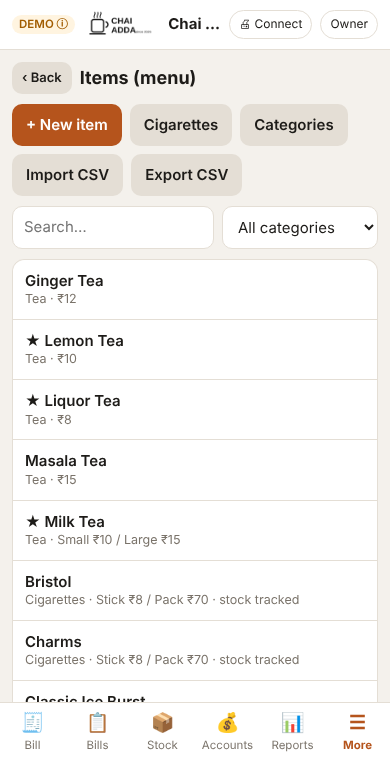
More → Items (menu). Tap an item to change its name, price or sizes (Small/Large), mark it a favourite ⭐ (it shows first), or mark it sold out. Add categories like Tea, Snacks, Drinks.
Want stock tracked for an item (cold drinks, biscuits)? Turn on Track stock in the item and link it to a stock item.
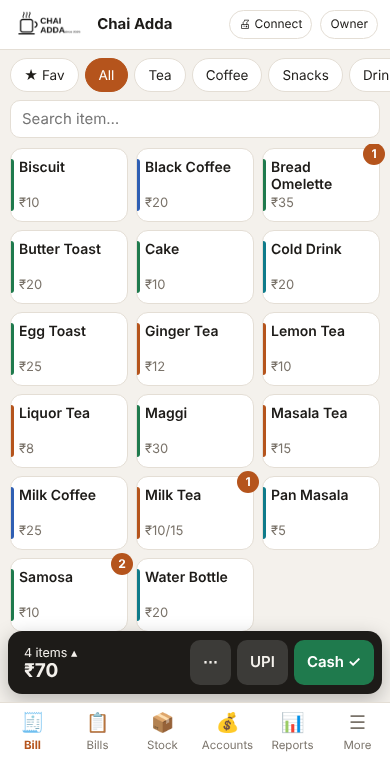
5Make a bill
Tap items to add them. Long-press an item for quantity or a note (“less sugar”). Then tap Cash ✓ or UPI ✓ — the bill is saved, printed and the token number is shown.
Use ⋯ for credit (udhaar), split payment, discount, parcel or a preview. Hold keeps an order aside for a table while you bill others.
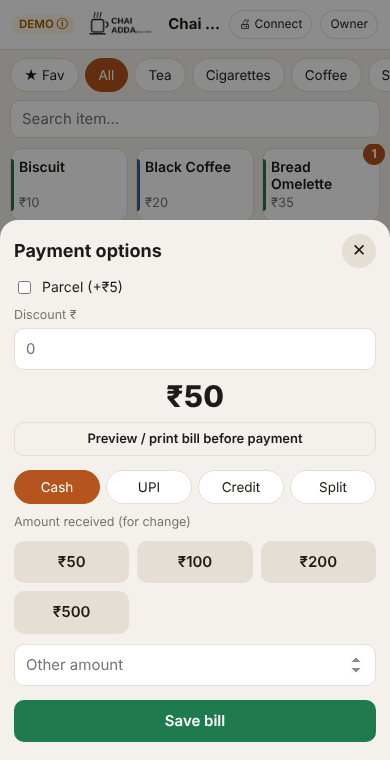
6Connect the printer
Switch on the Bluetooth thermal printer, tap 🖨 Connect at the top and pick it. Choose 58 mm or 80 mm paper. Add your logo in More → Shop settings.
No printer? Send the bill on WhatsApp from Bills.
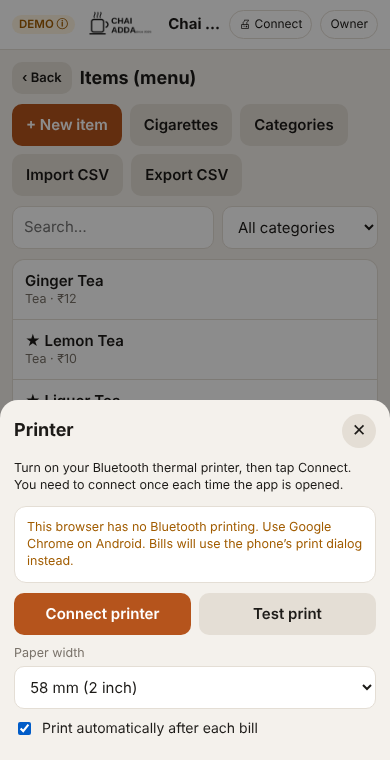
7Add staff with their own PIN
More → Staff & PINs. Cashiers can bill and take payments; waiters can only take orders. Only the owner sees reports, settings and can cancel bills (you can change this in settings).
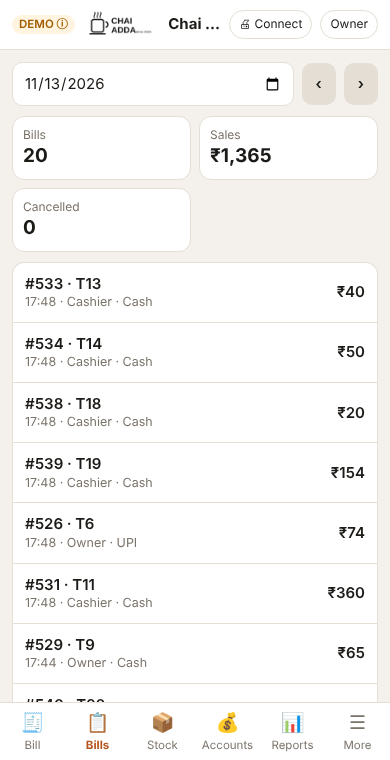
8Open and close the shift
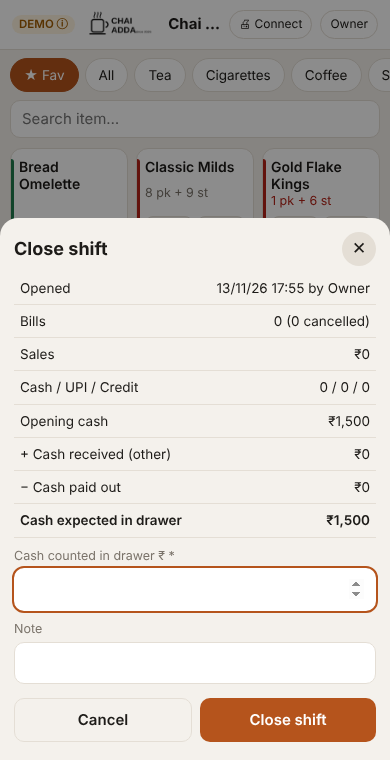
Count the cash when you open the shift. At closing, tap More → Close shift and enter the cash in the drawer — Kaunter shows if it is short or extra, and prints the shift report.
9Purchases, stock & expenses
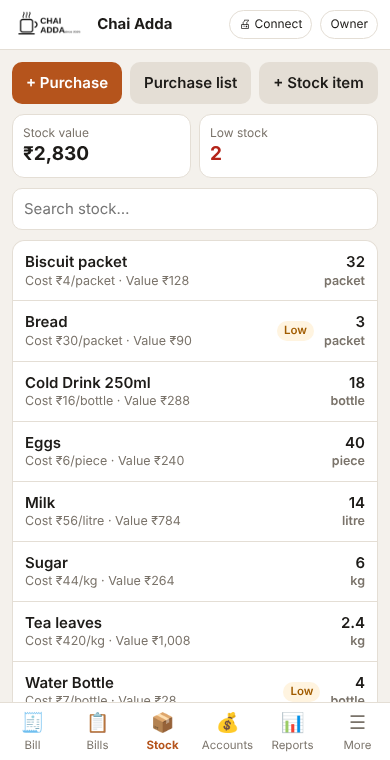
Stock → + Purchase adds stock and pays the supplier (cash, UPI or on credit). Accounts has expenses (milk, gas, rent), money received from credit customers and payments to suppliers.
10See reports
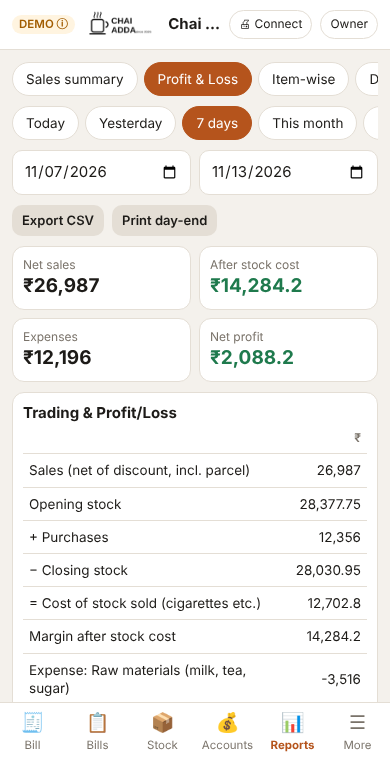
Reports: today’s summary, profit & loss, item-wise sales, day book, cash book, stock, outstanding and staff-wise sales. Export to Excel / Busy / Tally from More → Backup & export.
11Owner view, backups & branches
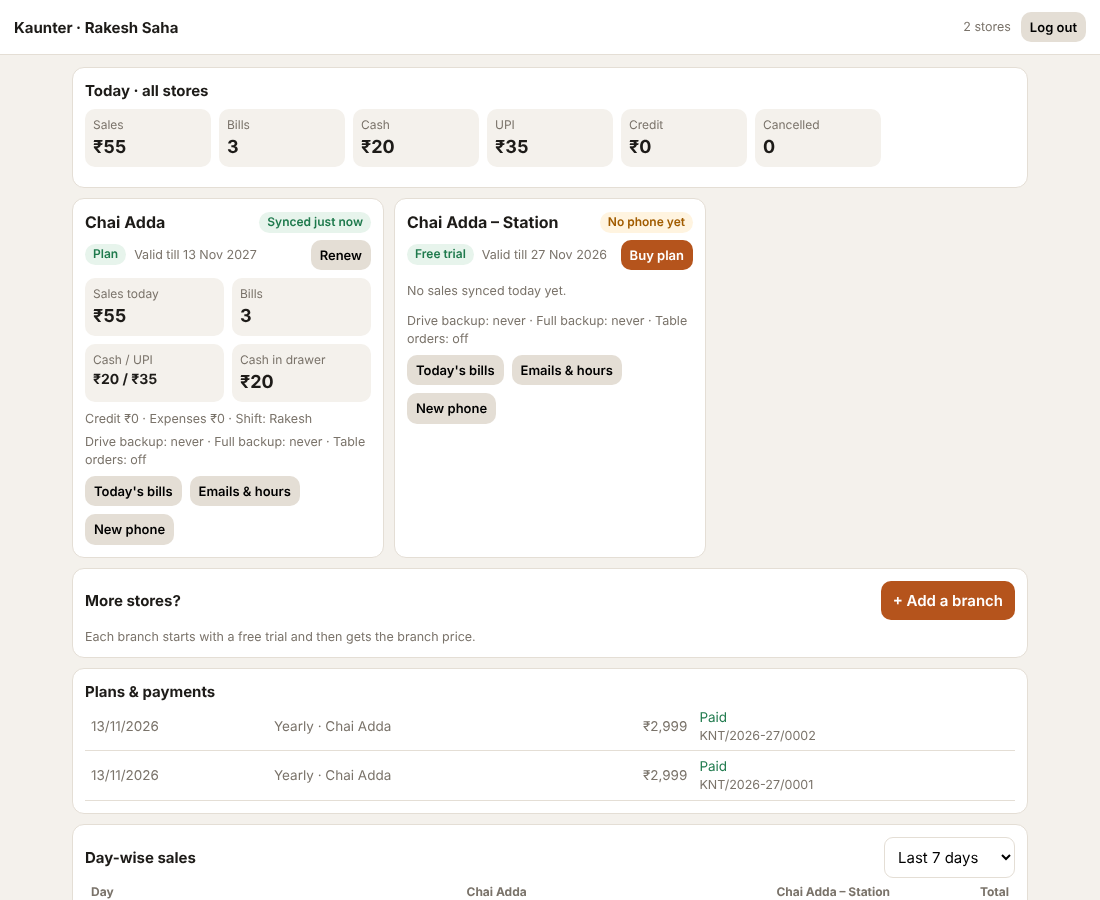
Open More → My plan → Owner dashboard on your own phone (bookmark it). See every store live, today’s bills, alerts and stock across branches. Tap Connect Google Drive once for automatic backups in your own Drive, and add your email for daily reports.
New branch? Tap + Add a branch and enter the code on the branch phone.
12Buy or renew your plan
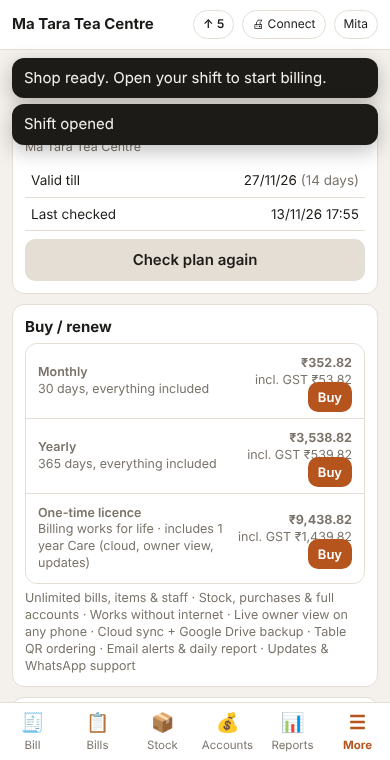
More → My plan: choose a plan, pay by any UPI app, and enter the 12-digit UPI reference (UTR). ACS confirms the payment and the plan updates on the phone by itself. Your invoices are kept here too.
If a plan ends, nothing is lost: the app becomes view-only until you renew.